


CamScanner- scanner, PDF maker
4.6152.41K Reviews
App Specs
- Version
- 7.21.5.2607090000
- Updated On
- License
- Free
- Downloads
- 500,000,000+
- Developer
- INTSIG PTE
- Categories
- Productivity
- Platform
- Android, iOS
Screenshots
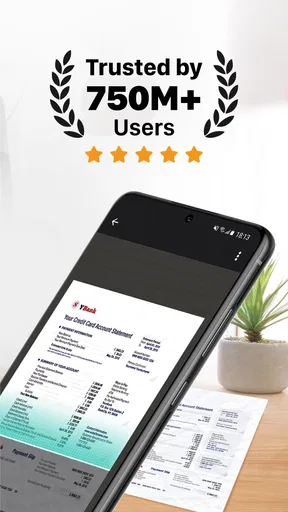
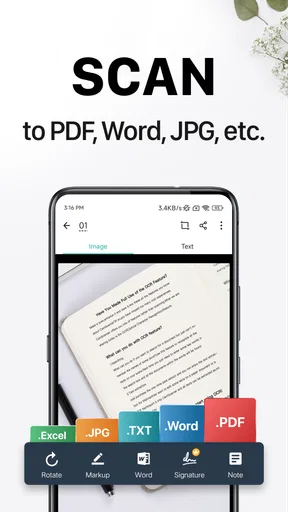
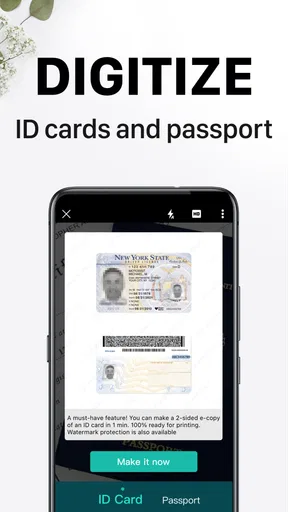
 Analysis by AppCompare
The most common frustration with a phone scanner usually arrives after the photo: a corner is missing, the page looks gray, or the file is awkward to send. CamScanner is built to handle much of that cleanup on the phone, but good results still depend on how you capture and organize your pages. I find it most useful when I need a shareable document quickly, not when I want a phone camera to replace every feature of a desktop scanner.
Where a scan can go wrong
A page that looks readable on screen can become difficult to use once it is saved or printed. Shadows, curled corners, patterned surfaces, and a camera held at an angle can all make the scan harder to read. Automatic cropping and straightening help, but they cannot recover text that was blurred or cut off in the original shot. I take a moment to check the edges and the smallest writing before moving on.
Multi-page paperwork calls for a slightly different habit: capture each sheet steadily, then review the sequence before sharing the file. A missing middle page is easy to overlook when the goal is simply to get a document sent. For forms, receipts, and signed pages, I also check that the final PDF opens and that the page order makes sense. That quick review is more useful than assuming the app’s automatic cleanup caught every problem.
Setup checks before scanning
CamScanner is a free productivity app from INTSIG PTE. It has a 4.7 average from around 5 million ratings, with over 500 million installs, which gives it a long track record among people who need mobile document capture. It is rated for Everyone, and the listed Android minimum is version 5.0. The current version is 7.11.0.2601210000; if a feature or screen looks different on your phone, checking that your installed app is up to date is a sensible first step.
Before a scan session, clear enough space around the paper to keep the whole page in view, and use even light when possible. A plain, contrasting background makes page edges easier to distinguish. For a document with small print, hold the phone steady and take an extra second to frame it rather than relying on later enhancement. These are simple checks, but they reduce the need to retake or manually correct a scan.
The app’s price is free, though it also offers in-app purchases ranging from $0.49 to $399.99 per item. I would start with the free experience and decide based on a real need, rather than assuming a paid option is required for basic scanning. If you are considering an upgrade, check what is included in the offer shown to you and whether it addresses a task you actually do; the price range makes it especially worth reviewing the details before confirming a purchase.
Recovering a document workflow
If a scan looks wrong, I would first retake the photo under steadier, more even light and check that the page is flat and fully visible. If the image itself is clear but the crop is off, use the manual adjustment controls rather than trying to fix a bad capture with brightness alone. For text-heavy pages, OCR can make content searchable and editable, but I treat the result as a draft: names, figures, and punctuation deserve a quick comparison with the original.
Worth Reading Before You Choose

Flipboard Shows What News Apps Must Do Beyond the Feed

Switching to Android Auto Means Rethinking Your Driving Routine

Google Calendar Makes a Crowded Week Easier to Manage

Ludo King Makes the Most of the Minutes Between Plans

Baby Panda World Brings Quick Play to Modern Phones, but Its Game Library Feels Busy

ESPN’s Live Game View Makes Following Close Games Easier
When a share does not arrive as expected, separate the steps. Confirm that the scan is saved in the format you want, open it once to check its contents, and then try sending it again through the destination you intend to use. CamScanner can share scans through email or social media and can connect with cloud services such as Google Drive and Dropbox. For a document that must be submitted correctly, opening the actual exported file before sending is a useful final check.
When another tool is the better fit
For an occasional receipt or a single page, the camera or a basic built-in scanning option may be enough, especially if you do not need OCR, file organization, or frequent sharing. A dedicated flatbed scanner is still a better choice for large batches, delicate originals, or work where consistent print-ready results matter. CamScanner sits between those options: it is convenient for everyday paperwork, but a phone capture remains sensitive to lighting, focus, and how carefully you frame the page.
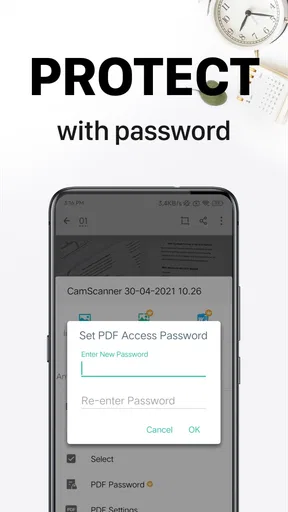
I would also think carefully before using any phone-based workflow for highly sensitive material. The app offers passcode protection and watermarks, but those tools do not replace your own judgment about where a document is stored or whom you send it to. For routine forms, class notes, receipts, and travel paperwork, the convenience can outweigh the extra handling; for confidential records governed by strict workplace rules, use the process your organization approves.
A practical example is a parent filling out a school form at the kitchen table. I would place the page on a clear surface, capture it in even light, check that every signature and edge is visible, and save the result as a PDF before emailing it. If a recipient needs a searchable copy, OCR may help, but I would still inspect any extracted names or dates. That small review step prevents a polished-looking scan from quietly carrying a capture or recognition error.
People often wonder whether CamScanner is only useful for PDFs. It can save scans as PDF or JPEG, so a multi-page document is easier to keep together in a PDF, while an individual image may suit a quick reference or a simple upload form. Another practical question is whether OCR can be trusted without checking: I would not rely on it blindly, particularly for small print or important numbers. Searchable text is a convenience, not a guarantee that every character was read correctly.
It also helps to decide where a file should live before scanning a pile of paperwork. A clear naming habit and a quick check of the destination make later retrieval less frustrating than collecting many files with vague labels. If a cloud transfer or email share behaves unexpectedly, first confirm that the original scan opens locally, then retry the transfer; this helps distinguish a capture problem from a sharing problem without repeating the whole job.
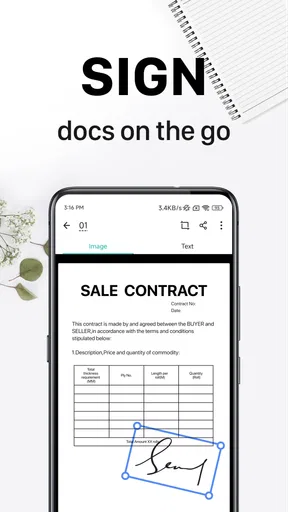
For users who need an electronic signature or fax as part of a document task, the app’s stated scope includes those options alongside scanning and sending. I would treat each as a separate step in the workflow and check the resulting document before it leaves my phone. That is especially worthwhile when a signature, page order, or recipient matters more than speed. The app is most convincing when it reduces errands and turns loose paper into a file I can review and send from one place.
CamScanner makes the most sense for students managing handouts, freelancers handling routine paperwork, and anyone who often needs to email a readable copy while away from a scanner. It is less compelling if you rarely scan, prefer not to manage documents on a phone, or need highly consistent batch capture. Its large audience and strong average rating suggest broad appeal, but those figures do not remove the practical trade-off: convenience comes with the need to check captures, OCR, and sharing yourself.
Turning Your Phone into a Document Powerhouse
Gone are the days when you needed a bulky scanner to digitize your paperwork. With CamScanner, scanning documents is as easy as snapping a photo. The app uses your phone's camera to capture the document and then optimizes the image for clarity. It’s like having a mini office in your pocket.
Features That Make Life Easier
One of the standout features of CamScanner is its ability to enhance scanned documents. The app automatically crops and straightens the images, making them look super professional. You can also manually adjust the brightness and contrast, which is great if you’re dealing with tricky lighting.
Once you’ve scanned your document, you can save it as a PDF or JPEG. Need to share it with someone? No problem. CamScanner lets you easily share your scans via email or social media, or you can upload them to the cloud, thanks to its seamless integration with services like Google Drive and Dropbox.
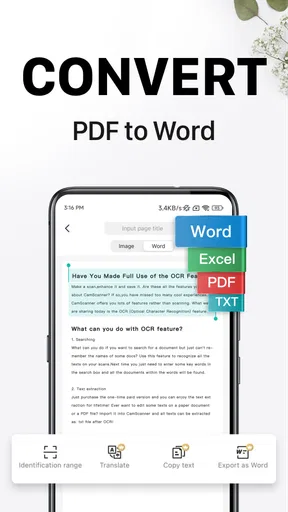
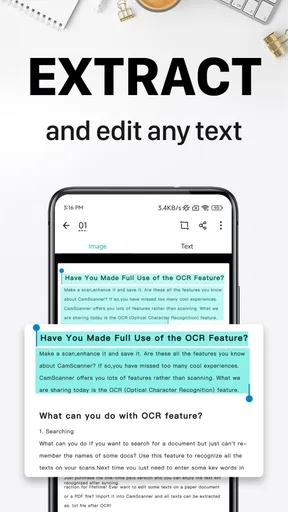
Oh, and if you’re someone who regularly deals with text-heavy documents, the OCR (Optical Character Recognition) feature is a lifesaver. It extracts text from images, making it searchable and editable. It’s not perfect, but it’s pretty darn close.
Keeping It Secure
Security is a big concern when it comes to handling sensitive documents. CamScanner offers a passcode protection feature to keep your files safe. You can even add watermarks to your documents if you want to give them an extra layer of protection.
User Experience and Interface
CamScanner’s interface is straightforward and user-friendly. Everything is laid out in a way that makes sense, even if you’re not tech-savvy. The app guides you through the scanning process with intuitive prompts, and the performance is smooth, with no noticeable lag or crashes.
However, the free version comes with ads, which can be a bit distracting. If you find them annoying, you might want to consider upgrading to the premium version for an ad-free experience and additional features like batch downloading and extra cloud storage.
Who Is It For?
Whether you're a student needing to digitize notes, a professional working with contracts, or just someone who wants to keep track of receipts, CamScanner is incredibly versatile. It’s perfect for anyone who needs to scan documents on the go without fuss.
Final Thoughts
All in all, CamScanner is a robust and reliable app that makes document scanning a breeze. The convenience of having a scanner in your pocket is undeniable, and the features it offers are nothing short of impressive. So, if you haven’t tried it yet, give it a go and see how it can simplify your life.
Ready to transform your smartphone into a document powerhouse? You can find CamScanner available for download on both Android and iOS platforms. Happy scanning!
Pros
- Easy to use with intuitive interface.
- High-quality PDF output.
- Supports multiple file formats.
- Cloud integration for easy access.
- Secure document sharing options.
Cons
- Contains ads in the free version.
- Subscription required for premium features.
- Occasional OCR inaccuracies.
- Limited editing tools for PDFs.
- May use significant storage space.
FAQs for CamScanner- scanner, PDF maker
What is CamScanner and what are its primary features?
CamScanner is a mobile app designed to turn your smartphone into a portable scanner. It allows users to scan documents, receipts, notes, and more into PDFs or images. Key features include smart cropping, auto-enhancement for clearer texts, OCR for text extraction, and easy sharing via email or cloud services.
Is CamScanner free to use, and what are the benefits of upgrading to the premium version?
CamScanner offers a free version with basic features such as scanning and saving documents. However, the premium version provides additional benefits like higher-quality scans, ad-free experience, extra cloud storage, OCR for multiple languages, and the ability to collaborate on documents with others.
How secure is the data stored in CamScanner?
CamScanner employs encryption protocols to ensure your data is secure. The app provides options to password-protect your documents and offers cloud storage with secure access. However, users should always be cautious and review the app’s privacy policy to understand data handling practices.
Can CamScanner integrate with other apps or cloud services?
Yes, CamScanner can easily integrate with various cloud services such as Google Drive, Dropbox, and OneDrive, allowing seamless uploading and syncing of documents. Additionally, it supports sharing via email and can connect with other productivity apps, making document management more efficient.
What should I do if CamScanner is not working properly on my device?
If CamScanner is malfunctioning, first ensure your app is updated to the latest version. Restart your device and check your internet connection. If issues persist, clear the app cache or reinstall the app. For further assistance, users can contact CamScanner's support team through their website or app.


